|
<< Click to Display Table of Contents >> Plotting |
  
|
|
<< Click to Display Table of Contents >> Plotting |
|
Gekko does not have its own in-built graphics engine, but you can use the PLOT statement to plot via gnuplot as engine, or alternatively transfer the variables to for instance Excel, R, Python, or others, for plotting. In this section, we will focus on the PLOT statement, which is quite central when working with timeseries.
To see what PLOT is capable of regarding styling etc., see the Gekko demo plots. Note: PLOT can plot mixed frequencies in the same plot. |
First of all, it pays off to understand that the statements PRT, PLOT and SHEET are close cousins. This means that any expression, with any operator, used in one of these statements, can be used in the same way in one of the other statements. For instance, you may take a PRT statement and just replace PRT with PLOT, and the timeseries will be plotted instead.
Therefore, the examples from the preceding section on printing can be used for plotting, too.
reset; |
Result:
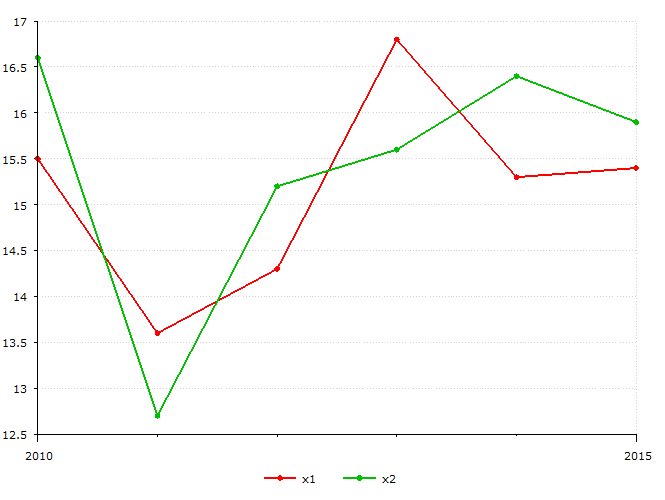
There are a lot of options to control and style plots, see the possibilities under the PLOT statement.
The PLOT window has some clickable controls, similar to the DECOMP controls:
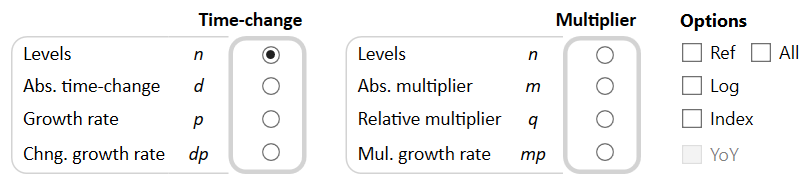
You may click on "Levels" to get levels (corresponding to <n> operator), or on "Growth rate" to get period for period relative change (operator or <p>). If you click "Relative multiplier", Gekko will show relative differences relative to the Ref databank (operator <q>), and so on. To show values from the Ref databank, use the "Ref" checkbox (or that "All" checkbox), and logarithms, indexing, and year-over-year transformations are also possible.
You may try this:
//continued |
Operator <d>, absolute change Operator <p>, growth rate (%)
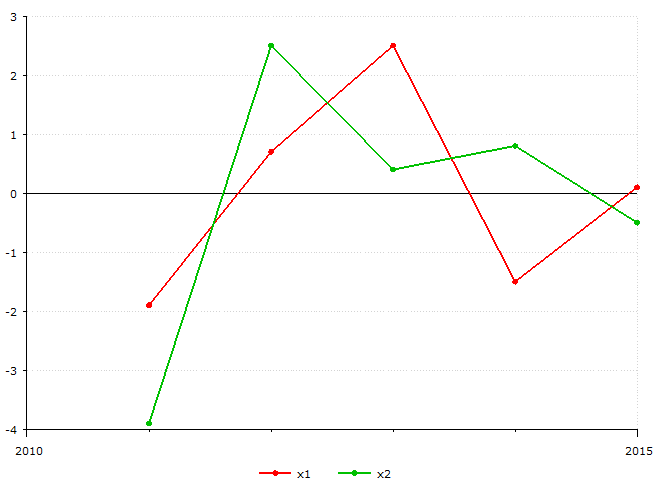
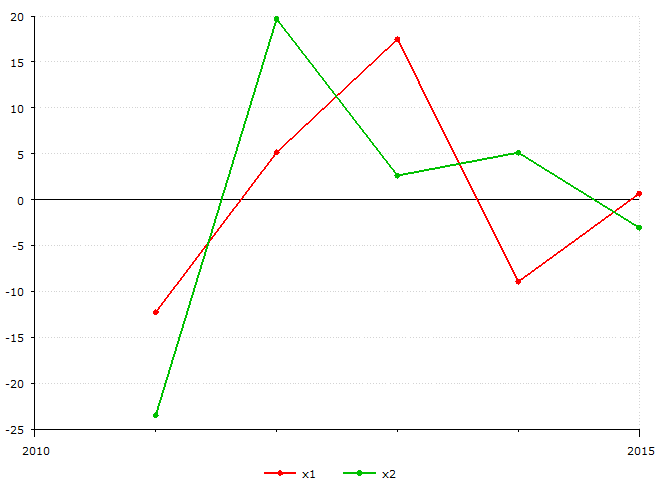
If you use the 'Copy link' button, the plot is copied as a .svg file, for pasting in, e.g., Microsoft Word or similar. Alternatively, you may save these .svg files to disk with the other buttons. Note that PLOT supports other output file formats, too, like for instance .png, .pdf, .emf, etc. The .svg format is practical for use with html pages. This is how the demo plots are made.
Like for PRT, you may plot any mathematical expressions like plot x1/x2; etc.
See the page on printing regarding plotting with databank comparisons, lists, array-series, and wildcards -- the syntax is the same as for PRT.
You can use PLOT to silently produce graph files, for instance:
//continued |
This will produce the file plot.svg in the working folder, without opening up a PLOT window.
The PLOT statement may open up a large number of plot windows. These can be automatically closed via the Gekko menu in the user interface: Window --> Close --> Close all plot windows. There is also a CUT statement that closes all external windows, including the plot windows (or use the corresponding button in the below the menu bar).