|
<< Click to Display Table of Contents >> Immediate Window |
  
|
|
<< Click to Display Table of Contents >> Immediate Window |
|
When using the Gekcel add-in for Excel, there is a more direct way of issuing VBA statements, rather than defining and running a VBA subroutine containing the statement(s). This direct way is by means of the so-called "Immediate Window" in Excel, and this window can also show Gekko text messages or other text output (like Gekko errors).
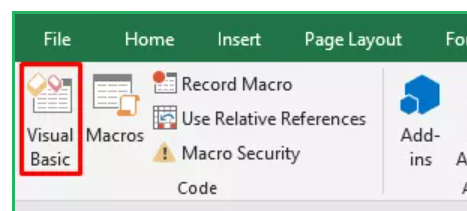
To open the Immediate window from the Gekcel.xlsm file, do the following. From the Developer tab, click the Visual Basic button to open up the Excel VBA editor. (If you don’t see the Developer tab, go to File --> Options --> Customize Ribbon and make sure that "Developer" is checked in the right pane).
This should show a window similar to the the following. In this window, the left part shows the "Project" where the VBA code is located, here under Modules, Module1. The right part of the windows shows the VBA code itself.
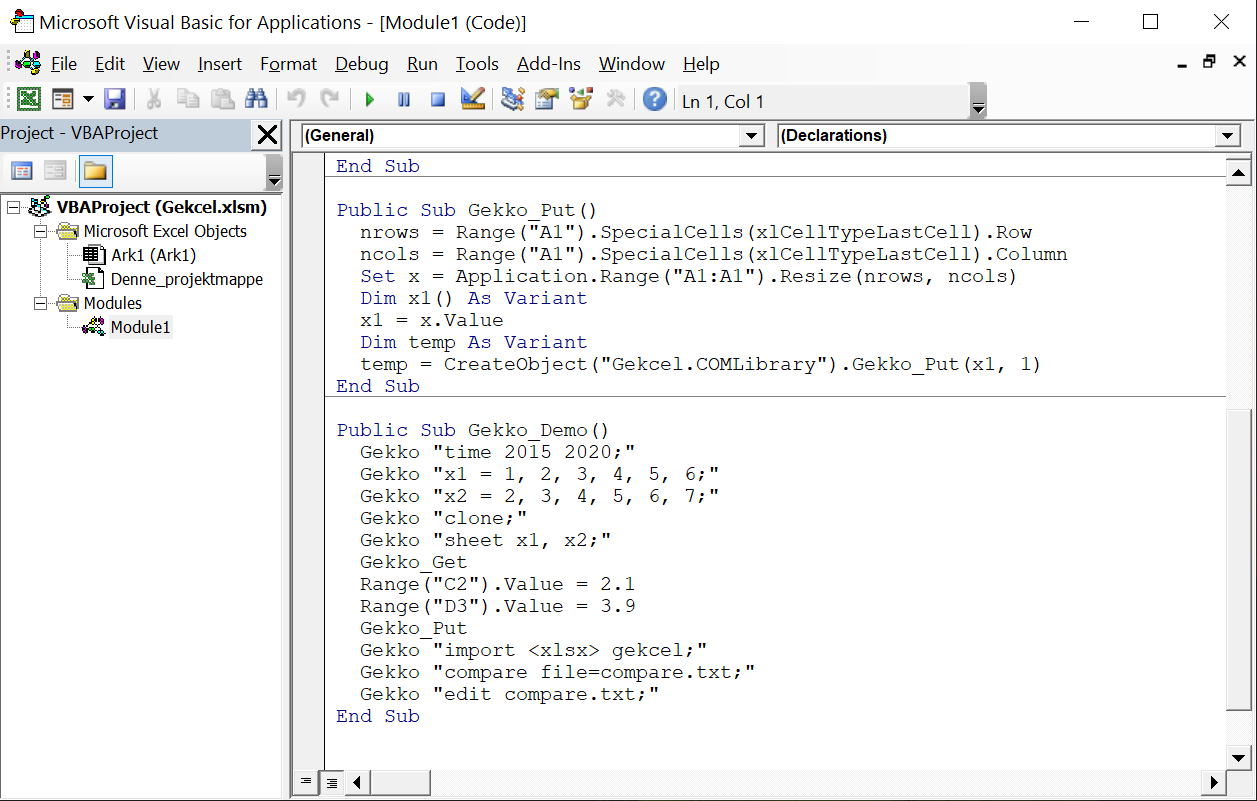
To make this look a little bit more like the Gekko user interface, we may remove the unnecessary left part of the window and add the so-called Immediate Window. Remove the left part of the window ("Project"), by simply closing it with the close button:
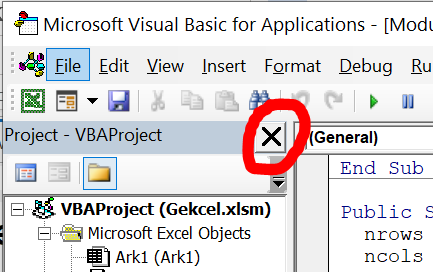
You may also have to remove a similar "Properties" window on the left part of the VBA editor: this is done in the same way.
Next, you should open up the Immediate Window via the Excel menu: View --> Immediate Window (or use the short-cut Ctrl+G). The Immediate Window will probably show up in the lower part of the VBA editor. Try dragging it (drag the blue "Immediate" band) to the top of the VBA editor, so that the Excel VBA editor ends up looking like this:

This now looks a bit more like the standard Gekko graphical user interface. Now, you can again run the subroutine Gekko_Demo(). Click somewhere inside the subroutine and click the green "Run Sub" button (or hit F5). This time, the Gekko output will be shown in the Immediate Window, like for instance:
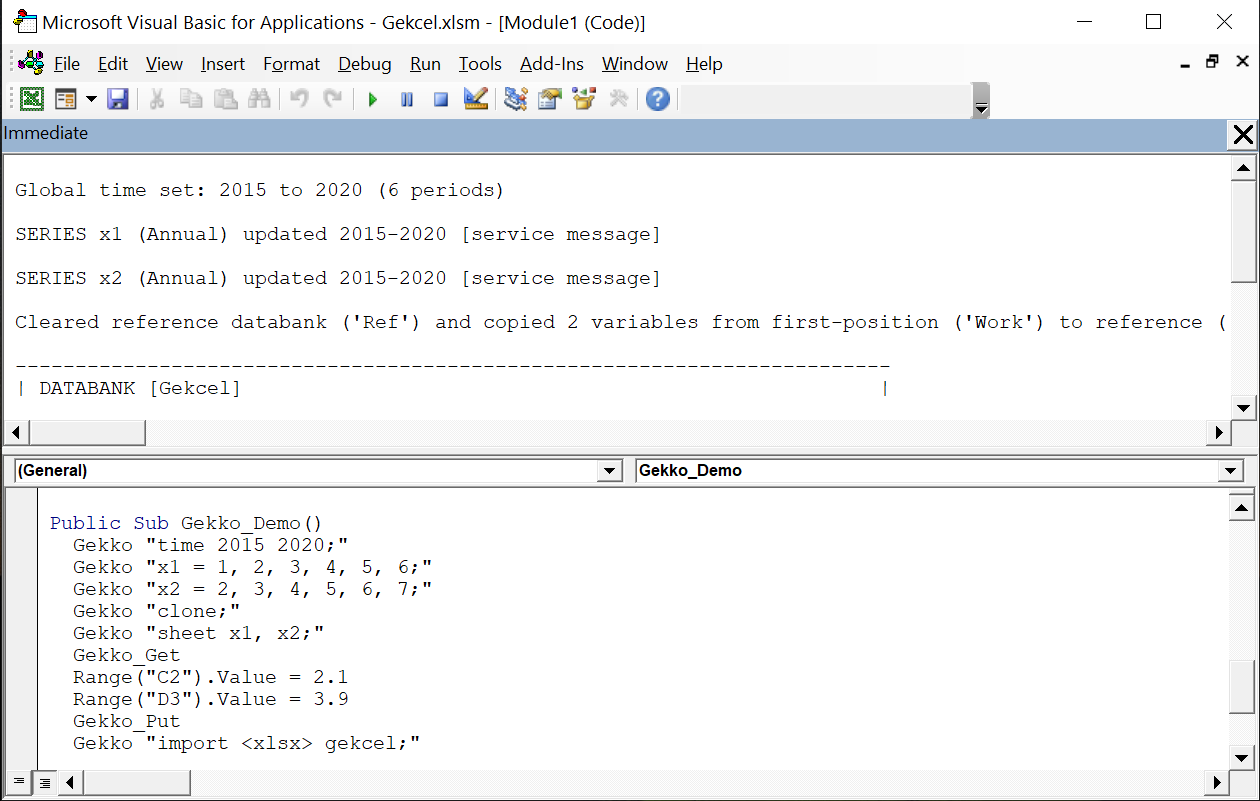
In this way, normal Gekko text messages and Gekko errors will be shown, making it easier to see what Gekko is actually doing when running a VBA subroutine containing Gekko statements.
The Immediate Window can also be used to input smaller snippets/lines of Gekko code. For instance, in the Immediate Window you may try to issue a Gekko TELL statement by writing the line Gekko "tell 'Hello from Gekko!';" in the Immediate Window and hitting [Enter]. After doing this, the answer from Gekko will be shown just below like here:
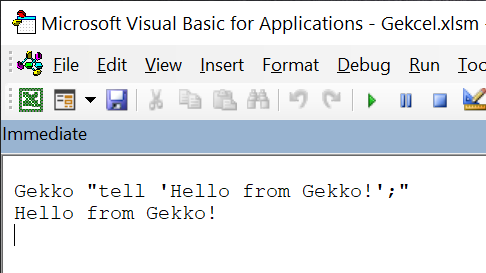
Used like this, you may issue Gekko statements directly from the Immediate Window, without defining and running a VBA subroutine. When hitting [Enter] in the Immediate Window, Gekko will try to interpret and run the current line. If you need to insert a newline without executing the current line, you can use Ctrl+Enter (like in the Gekko GUI window proper).
Unfortunately, it does not seem possible to operate with two such Immediate Windows, issuing statements in one of them and receiving Gekko output in the other. So when using the Immediate Window to issue Gekko statements, Gekko statements and Gekko output get mixed up in the Immediate Window. To avoid this mix up, you have to run the the Gekko statement(s) as an Excel subroutine (VBA).
When using VBA, you can insert a breakpoint to make Excel stop execution at a specific line (click on the grey bar to the left of the line):
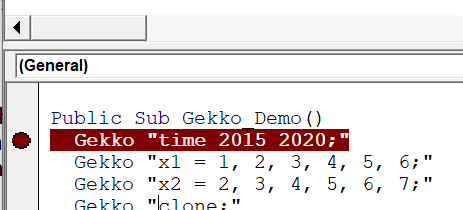
After this, when you run the Gekko_Demo() subroutine (with the green "Run Sub" button or F5), Excel will stop and wait before the execution of the red-marked line.

After this, you may execute the lines one by one with Shift+F8. This way, you may run Gekko statements one by one in an orderly fashion, while inspecting the Gekko output. This provides an experience similar to running Gekko statements from the Gekko GUI window proper.
One thing to note about this way of executing Gekko statements is that a statement like for instance Gekko "time 2015 2020;" is run as a whole, corresponding to writing time 2015 2020; in the normal Gekko GUI window and hitting [Enter].
If you for instance have a loop like for val %i = 1 to 3; tell %i.string(); end; (printing the numbers 1, 2, and 3), you cannot issue this statement in VBA in three parts, like for instance:
Public Sub Gekko_Loop() Gekko "tell %i.string();" Gekko "end;" |
This will fail with a Gekko parsing error (same error as issuing the statement for val %i = 1 to 3; in the normal Gekko input window). Instead, in Gekcel, you have to issue the loop as one statement, like for instance:
Public Sub Gekko_Loop() |
This will print the numbers 1, 2, and 3 in the Immediate Window (if this is activated/shown).
Therefore, when using Gekcel, program structures containing BLOCK, FOR, IF, FUNCTION or PROCEDURE (and corresponding END statements) must be issued as one VBA statement.
If you need to use such functionality, you can just put this code in an external Gekko .gcm file which you subsequently call with a RUN statement from Excel VBA.