|
<< Click to Display Table of Contents >> FLOW |
  
|
|
<< Click to Display Table of Contents >> FLOW |
|
The FLOW statement opens up a flowgraph corresponding to an equivalent DECOMP command. You may think of FLOW as starting up an invisible DECOMP window, and pressing its Flow button. (As is the case for DECOMP, you may be presented with a FIND window first, before the FLOW window is shown).
FLOW will show a flowgraph containing recursive decomposition to depth = 2 (default). In the flowgraph window, you may also change the Ignore percentage in order to remove irrelevant arrows and boxes, the flowgraph may be rotated, and the [-] and [+] buttons are for zooming.
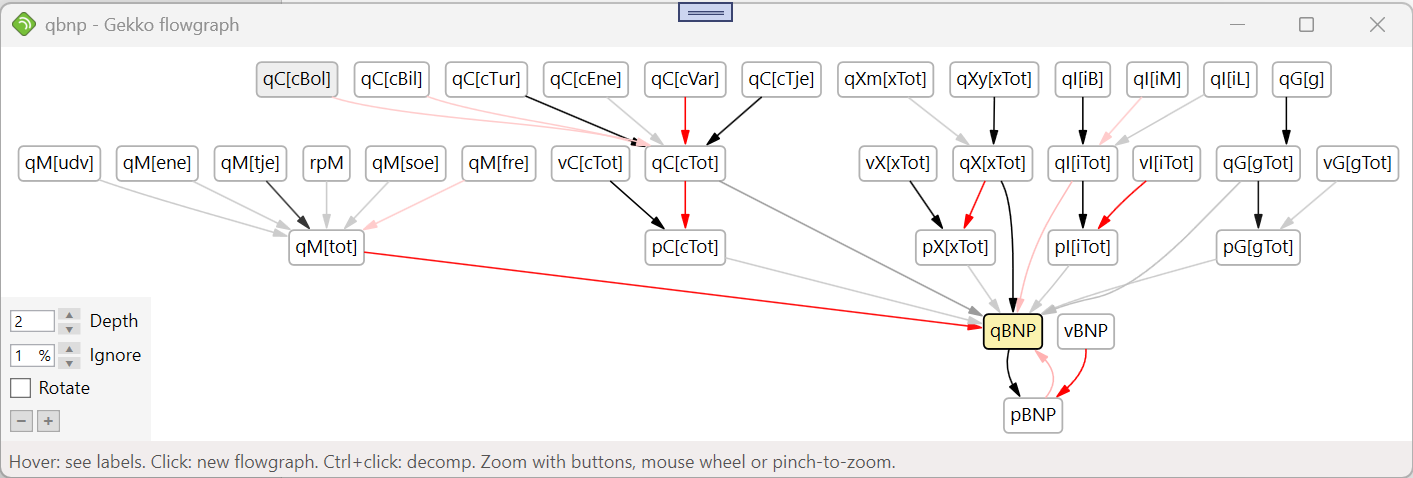
When hovering over the boxes, variable labels are shown, while clicking a box opens up a new flowchart window. With Ctrl+click, a new DECOMP window is opened instead.
If you encounter problems with the FLOW statement, try using DECOMP instead to see the decomposed values.
See the DECOMP statement: the syntax is identical except for the use of flow instead of decomp.
NOTE: At the moment, you need to also state the equation name, in order to get the flowgraph to open directly.
Show a flowgraph of the y from the equation e1: (will show the graph for the starting period 2010):
flow <2010 2020 m> y from e1; |
To quickly close all FLOW windows, you may use the CUT statement or the "Close all plot/decomp/flowgraph/trace windows" button in the Gekko main window. When using this button, and if the Gekko main window is out of focus, you may have to click the button two times (the first time brings the Gekko main window back in focus).
When looking for series and array-series names, autocomplete ([Tab] or [Ctrl+Space]) can be practical as a supplement to the INDEX statement.
option decomp_array_calc_missing = m;
option decomp_data_missing = m;
option decomp flowgraph depth = 2;
option missing = error;
CUT, DECOMP, FIND, MODEL, MULPRT, PRT, PLOT