|
<< Click to Display Table of Contents >> R_RUN |
  
|
|
<< Click to Display Table of Contents >> R_RUN |
|
The R_RUN statement is used as an interface to R. The interface allows easy transfer of matrices from Gekko to R, execution of a R program, and easy returning of matrices from R to Gekko. Instead of matrices, you may alternatively use Apache Arrow files to communicate with R, cf. the example at the end of this page.
When executing R_RUN, you need R on your system, and Gekko will attempt to auto-detect the location of R. If this fails, you may indicate the location via option r exe folder = ... ; (Gekko will automatically add R.exe or \R.exe, unless the path ends with .exe, .bat or .cmd). If you just need to export matrices for use in R (without returning to Gekko), try the EXPORT<r> statement. Regarding an equivalent interface to Python, see PYTHON_RUN.
r_run <MUTE TARGET=...> matrix1, matrix2, ... FILE = filename ;
r_run <MUTE TARGET=...> filename ;
MUTE |
(Optional). With this option set, R is run silently in Gekko. Alternatively, R output is shown in the Gekko main window. Do not used <mute> when debugging your R program, since it shows potential R error messages. |
TARGET = |
(Optional string). If for instance <target = 'data1' >, the matrices are inserted at the exact location in the R file, where there is a line starting with gekkoimport data1. If the option is not given, the matrices are inserted at the top of the R file (this is often sufficient, the target logic is intended for larger R programs) |
FILE = |
Filenames may contain an absolute path like c:\projects\gekko\bank.gbk, or a relative path \gekko\bank.gbk. Filenames containing blanks and special characters should be put inside quotes. Regarding reading of files, files in libraries can be referred to with colon (for instance lib1:bank.gbk), and "zip paths" are allowed too (for instance c:\projects\data.zip\bank.gbk). See more on filenames here. |
Example syntax:
r_run <target = 'data1'> #x, #y file = ols.r; |
The example below estimates (in R) a linear least squares model with five parameters. You may consult the OLS section to see the same parameters calculated via the OLS solver, or the MATRIX section to see the same parameters calculated via linear algebra. See also the Python interface.
First, put the following R file ols.r into your working folder:
gekkoimport data1 # Gekko data (matrices x and y) is inserted here |
Next, you can run the following program in Gekko:
reset; cls; |
The program prints R output on the screen, and plots actual and predicted values. Plotting is done using both R's plot function, and Gekko's own PLOT (the R plot is shown below).
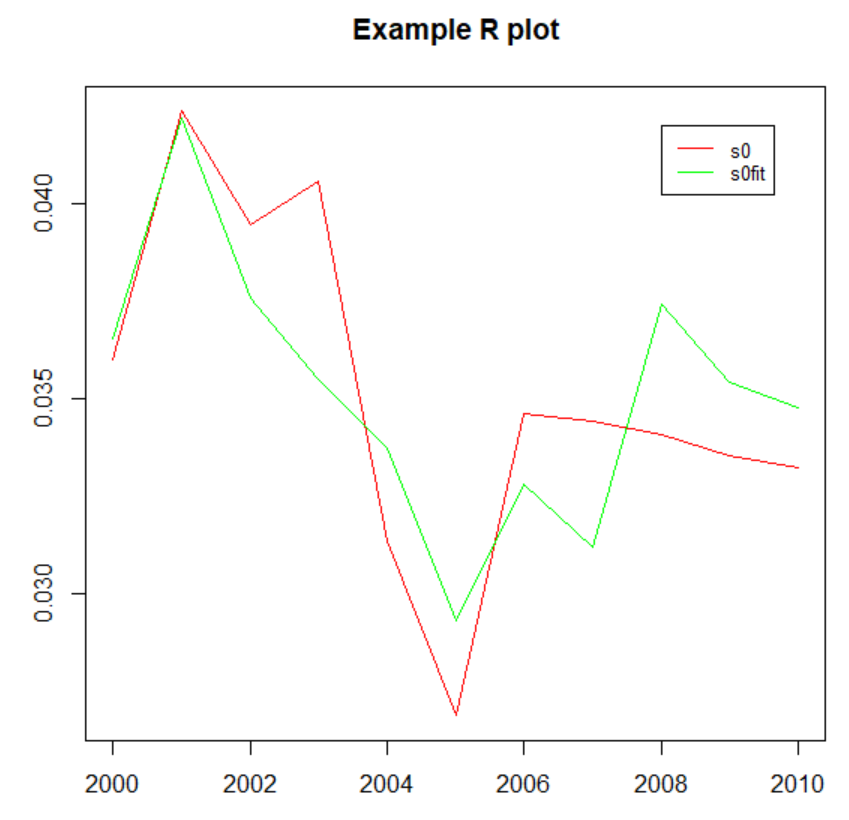
The #beta vector looks like this:
#beta |
Some of the output from R shown in Gekko is the following (cf. the same example in the OLS section):
Coefficients: |
Note that in this example, the <target= 'data1'> option and the corresponding gekkoimport data1 in the ols.r file are not really necessary, since the data could just be put at the top of the R file anyway. The code that is injected into the R file before it is executed looks like the following:
x = c(0.0304674549413991, 0.0232281261192072, 0.0160983506716728, .... ) |
And the file that R produces for Gekko to consume looks like the following (this is actually what the gekkoexport() function in R does):
R2Gekko version 1.0 ... |
This text-based way of interchanging data back and forth works fine, as long as the datasets are not too voluminous (otherwise see the following section). The interface is more stable than COM-based automation, and interchange of values, text, etc. could also be provided if needed.
Note that with r_run<mute>, you will not see any potential R errors on the screen. So please do not use <mute> when you are still debugging the R program.
Note that at the moment, the gekkoexport() function only takes one argument/matrix at the time.
You need to have R installed on your computer. Gekko will try to auto-detect the location of the R files on your system. Gekko uses Rscript.exe, not R.exe, in order for R to return output dynamically line by line. Typical R location is something like this: c:\Program Files\R\R-3.6.2\bin\x64\Rscript.exe. You may manually indicate the path via this option: option r exe folder = ... ;.
You can also use EXPORT<r> to export matrices to a file suitable for R.
option r exe folder = '';